FBX Settings Copier
Copy & paste FBX import settings between FBX assets in the Project window. When multiple FBX files should share the same import setup (e.g. outfits supporting multiple avatars), this saves you from re-entering the settings in the Inspector every time.
Usage
- Select the source FBX in the Project window → Right-click →
Copy FBX Settings - Select target FBX files (multiple selection supported) → Right-click →
Paste FBX Settings
Pasting to multiple FBX files at once is supported. Files whose settings already match the copied ones are skipped without reimporting, so mixing in already-configured files costs no extra time.
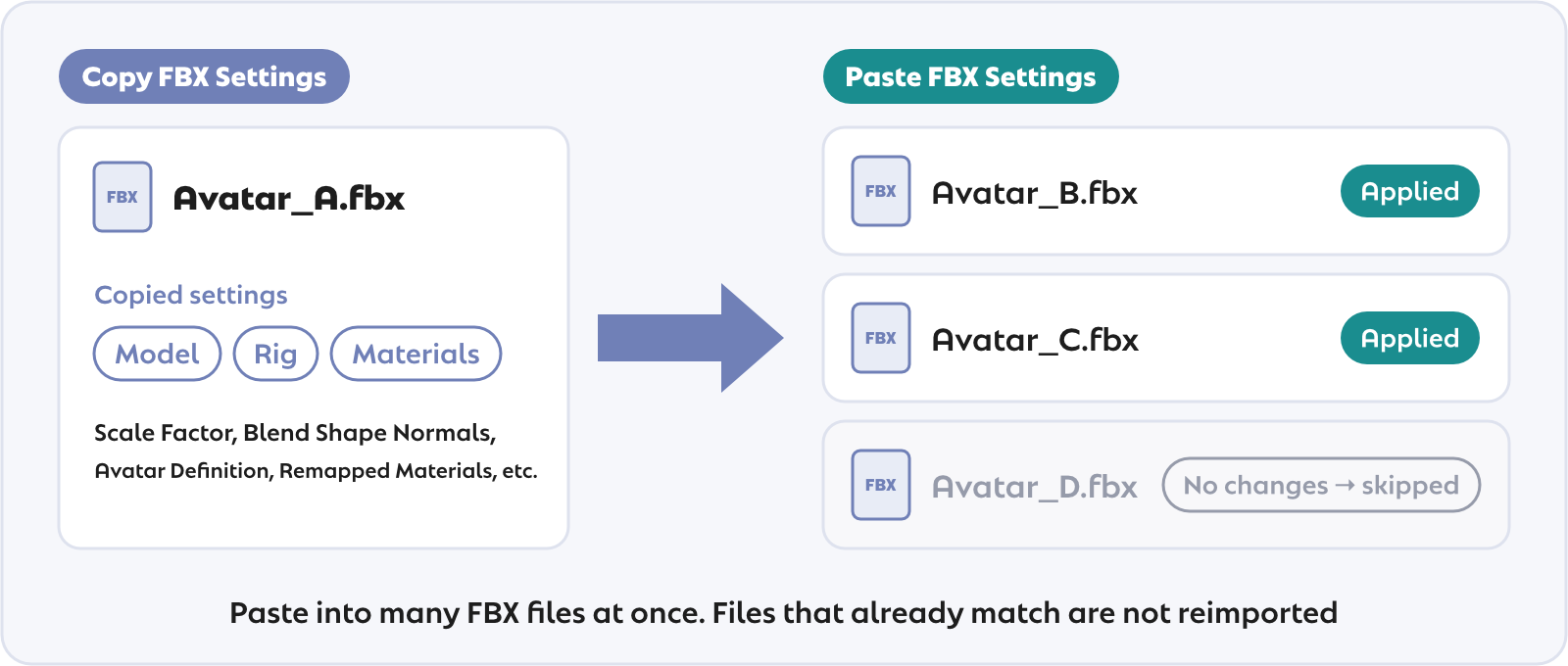
What Is Copied
| Tab | Copied settings |
|---|---|
| Model | All settings (Scale Factor, Read/Write, Blend Shapes, Normals/Tangents, Legacy Blend Shape Normals, etc.) |
| Rig | Animation Type, Avatar Definition (including the source avatar reference for Copy From Other Avatar), Skin Weights, Optimize Bones / Optimize Game Objects |
| Materials | Material Creation Mode, Location, Naming/Search settings, and Remapped Materials |
How Remapped Materials Are Applied
Remapped Materials (the material name → material asset mapping) are applied only where the target has a material with the same name. Unmatched remaps are ignored, and existing assignments on the target are never overwritten by them. For FBX files sharing the same material names — such as color or outfit variations of the same avatar — this lets you align the material assignments in one go.
What Is Not Copied
The following are file-specific and therefore not copied:
- Animation clip definitions on the Animation tab (frame ranges and take names differ per FBX)
- Humanoid bone mappings (Avatar Configuration) — for avatars sharing the same base body, set Avatar Definition to
Copy From Other Avatarbefore copying
Note
Import settings changes cannot be undone with Ctrl+Z. If you want a safety net, save the current settings as a Preset (top-right of the Inspector) before pasting.
Access
Right-click an FBX in the Project window → Kanameliser Editor Plus > Copy FBX Settings / Paste FBX Settings