Merge Skinned Mesh (Color Menu Safe)
Creates a Merge Skinned Mesh of AAO: Avatar Optimizer without breaking color change menus driven by Material Setter / Material Swap. The color change setup in the avatar is analyzed, and only the materials whose changes would leak into other meshes after merging are excluded from material slot merging.
Requirement: AAO: Avatar Optimizer 1.8.0 or higher, Modular Avatar 1.13.0 or higher
Background
AAO's Trace and Optimize currently skips meshes with material replacement animations when merging meshes automatically. Material Setter / Material Swap generate such animations at build time, so meshes targeted by a color change menu are never merged automatically — a manual Merge Skinned Mesh setup is required.
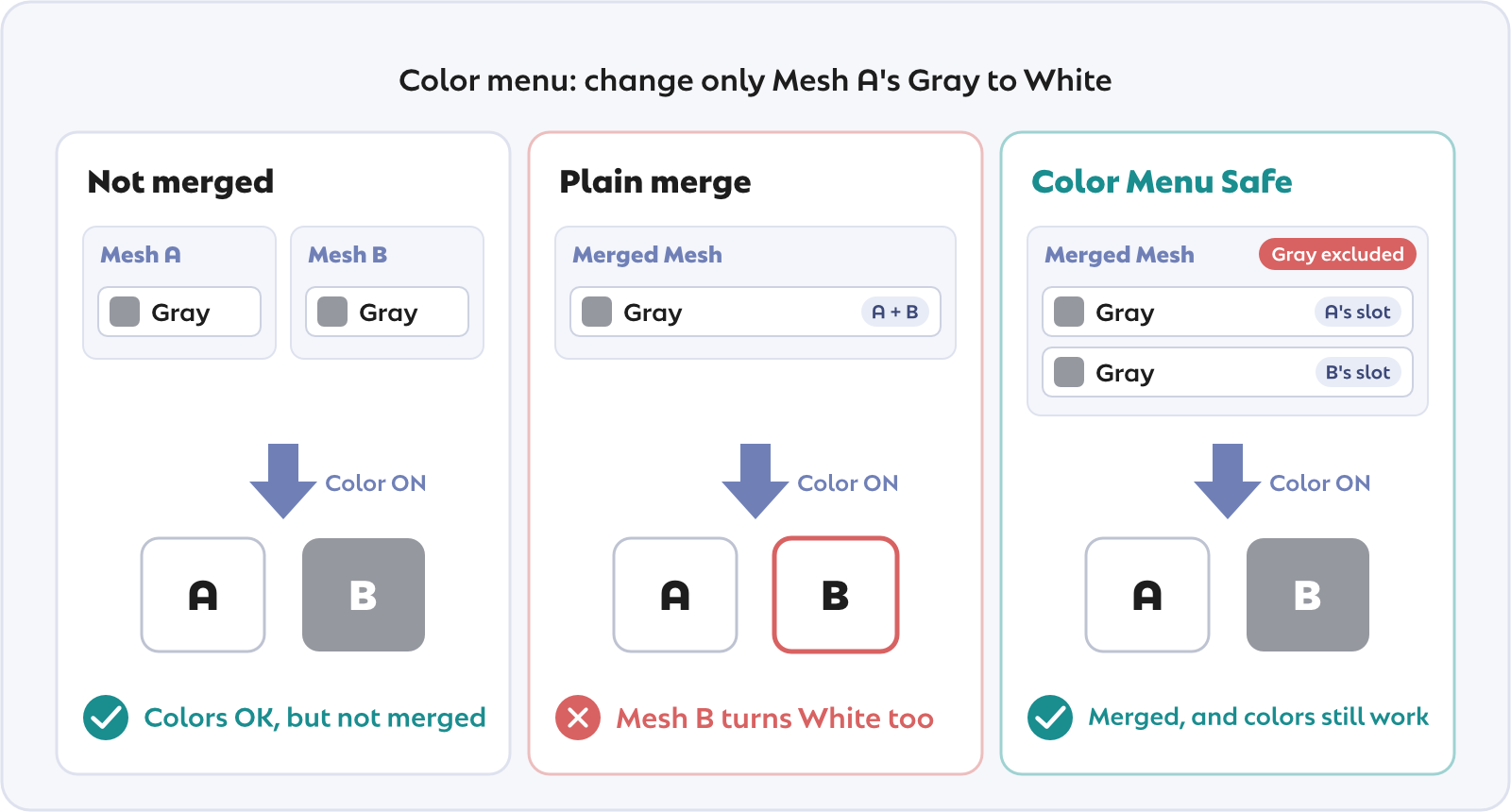
However, when merging manually, slots sharing the same material are combined into a single slot, so a color change that targets only one of the meshes can end up applying to the merged partners as well. Preventing this requires unchecking "Merge" for the affected materials, and finding out which materials are affected means reviewing every Material Setter / Material Swap in the avatar. This feature automates that analysis and setup.
Usage
- Select the meshes to merge (SkinnedMeshRenderer / MeshRenderer, multiple selection)
- Right-click →
Create Merge Skinned Mesh (Color Menu Safe)
A Merge Skinned Mesh object covering the selected meshes is created under their common parent. Material Setter / Material Swap components in the avatar (including those on inactive menu objects) are analyzed, and materials whose color changes would break are pre-registered with their "Merge" checkbox turned off. Excluded materials are listed in the console log.
Two variants are available for MA Object Toggle setups:
| Command | Description |
|---|---|
Create Merge Skinned Mesh (Exclude Object Toggle) | Merges the selected meshes excluding those targeted by any MA Object Toggle in the avatar (including their children) |
Create Merge Skinned Mesh (From Object Toggle) | Run by right-clicking an object with an MA Object Toggle. Merges the meshes under the toggle's target objects, grouped by the ON/OFF state the toggle sets. When the toggle cannot reach the merged object, the merged object is added to the toggle automatically |
The created Merge Skinned Mesh object can be renamed freely and moved anywhere inside the avatar. Just note that after moving it inherits the ON/OFF state of its new parents — which can also be used intentionally, by moving it under a toggled parent to match a visibility unit. References added to a toggle by (From Object Toggle) keep working after renaming or moving.
Recommended Workflow
Steps to implement both color change menus and object toggles while keeping performance:
- Create the color change menu (
Copy Color Variants→Create Color Menuof MA Material Helper) - Create the on/off menus with MA Object Toggle or similar
- Select all always-visible meshes and right-click →
Create Merge Skinned Mesh (Exclude Object Toggle) - Right-click each object with an MA Object Toggle →
Create Merge Skinned Mesh (From Object Toggle)
The key point is to run the merge commands after your menus are complete. The analysis reflects the Material Setter / Swap and Object Toggle setup at the time the command runs, so when you add or change color menus or toggles afterwards, delete the created Merge Skinned Mesh objects and run the commands again.
How Exclusion Is Decided
Slots sharing the same material are combined into one slot when merged. Whether that is safe is decided by the following rule:
- Every Material Setter / Material Swap changes all slots of the material in the same way (or changes none of them) → merging is allowed
- Any component changes only some of the slots, or changes them to different materials → the material is excluded
Example: Mesh A and Mesh B both use the same material Gray.
| Color change setup | Result |
|---|---|
| One setter changes Gray on both A and B to White | Merged (no exclusion) |
| Gray on A → White, Gray on B → Blue | Gray excluded |
| Only Gray on A is changed (B untouched) | Gray excluded |
| Material Swap with empty Root (whole avatar) changing Gray → White | Merged (no exclusion) |
| Material Swap whose Root covers only Mesh A changing Gray → White | Gray excluded |
Slots of excluded materials remain separate, so the draw call reduction is smaller for them, but the meshes themselves are still merged into one, so the reduction in mesh count and skinning cost is preserved.
Toggled Meshes
Meshes that are toggled on/off — bags, accessories, and so on, e.g. with MA Object Toggle — should normally be left out of the merge: merge only the always-visible meshes. Merged meshes become a single renderer, so mixing toggled meshes with always-visible ones stops the toggle from working correctly (AAO shows a warning at build time when this applies). Create Merge Skinned Mesh (Exclude Object Toggle) automates this exclusion.
If you understand how your toggles work, you can still merge meshes that are toggled together and build the menu so that it toggles the merged object itself:
- When the toggle switches a common parent object, the merged object is created under that parent and works as is
- When MA Object Toggle lists the meshes individually, add the created merged object to the toggle as well (with the same ON/OFF setting as the mesh entries). AAO shows a warning about the source meshes' visibility animations at build time, but the setup works correctly because the merged mesh itself is toggled
When you use MA Object Toggle, Create Merge Skinned Mesh (From Object Toggle) automates this setup: it merges per ON/OFF state and adds the merged object to the toggle when the toggle cannot reach it. Meshes targeted by a different Object Toggle belong to another visibility unit and are excluded automatically.
Note that the "Copy Enablement Animation" option of Merge Skinned Mesh cannot be used when MA Object Toggle lists the meshes individually — each mesh gets its own animation, so the option raises an error.
Notes
- Meshes with a Cloth component are excluded from the merge automatically (AAO does not merge cloth-driven meshes, and including one makes the build fail). Excluded meshes are listed in the console log
- The exclusion list does not update automatically when you change your Material Setter / Material Swap setup afterwards. Re-run the command to recreate it
- Material replacements done directly with custom animation clips are not analyzed; uncheck "Merge" for those materials manually in the Inspector when needed
Access
Right-click in Hierarchy → Kanameliser Editor Plus > Create Merge Skinned Mesh (Color Menu Safe) / (From Object Toggle) / (Exclude Object Toggle)
(From Object Toggle) appears only when right-clicking an object that has an MA Object Toggle.