Component Copier
Copies the components of an outfit or avatar (PhysBone, Contact, Constraint, Modular Avatar, ...) to another outfit or avatar. It does more than copy values: the object references inside the components (bones, colliders, constraint sources, ...) are redirected to the corresponding objects of the target automatically.
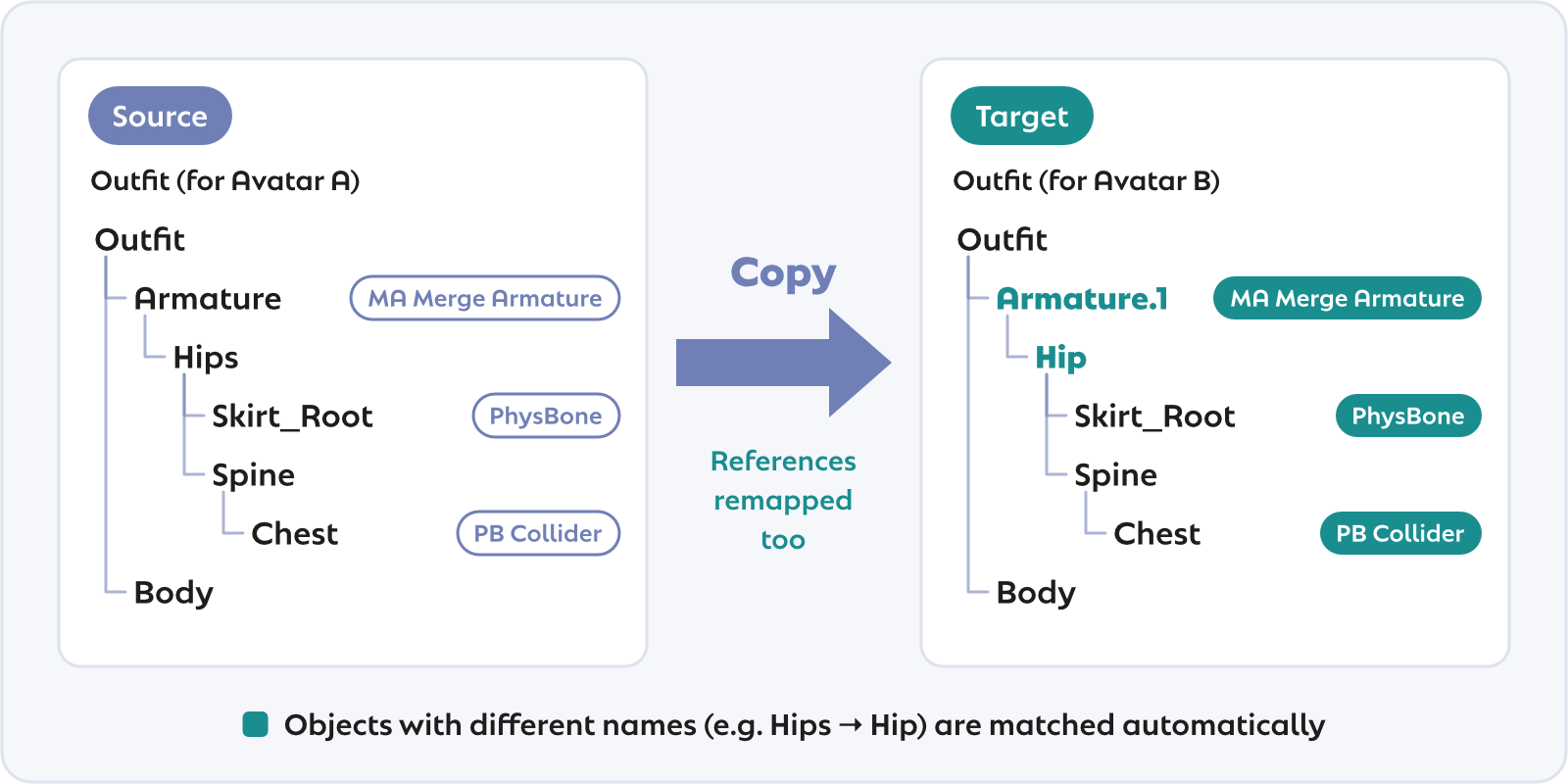
Typical uses:
- Carry PhysBone and Modular Avatar settings over to an updated version of the same outfit, or to the version made for another avatar
- Bring just a few components from one outfit to another
Usage
- Open
Tools > Kanameliser Editor Plus > Component Copierfrom the menu - Set Source to the object that holds the settings (a Hierarchy object, a Prefab instance, or a Prefab asset in the Project view all work; the components below it are listed)
- To copy to the other side of the same hierarchy, turn on Copy to the other side (step 4 then asks for a direction instead of an object; see Copy to the other side for details)
- Check the components to copy
- Set Target to the scene object that receives the settings (the objects of the source and the target are matched automatically; the
⇅button swaps the source and the target) - Look through the Mapping section and, where a row is marked to review (
?) or unmapped (✖), pick the counterpart by hand as needed - Read the pre-check and, if everything looks right, press Apply (Undo reverts it)
- Check the diff shown after applying to confirm that everything arrived as expected
Note: what can be a target
Only scene objects (including Prefab instances and objects in a Prefab Stage) can be a target. Applying to a Prefab asset directly would spread to its Prefab Variants and be hard to undo. Diff check only changes nothing, so a Prefab asset can be used there. A copy to the other side writes into the source itself, so with a Prefab asset as the source only the diff check is available.
Component list
Once a source is set, the components below it are listed grouped by type or by object.
- Presets: PhysBone, Contact, Constraint, MA (Modular Avatar), other tools (AAO, TTT, ..., whichever the source has), and All check or uncheck a whole group at once
- Search: partial match on object paths and type names. Turn on the
.*button for regular expressions (e.g.Skirt|Hair) - Show others: also offers the basic types that are hidden by default (Transform, Renderer, MeshFilter, Animator, VRCAvatarDescriptor, PipelineManager)
- Objects missing in the target: at the end of the list, prefabs and empty objects (anchors, ...) that the target lacks. The ones a copied component needs are created automatically; the rest can be checked to add them too
Clicking a row or a heading in the list selects the object and highlights it in the Hierarchy.
Recreate MA Mesh Settings after copying
MA Mesh Settings can be copied with its references, but the Anchor Override and Root Bone differ from avatar to avatar. After copying, delete it and run Setup Outfit again on the target avatar so that it is set up for that avatar.
Mapping
Objects of the source and the target are matched automatically by path, name, and a dictionary of humanoid bone names (Hips and Hip, UpperArm_L and Left arm, ...). Suffixes added to avoid name clashes, such as Armature.1 or .001, and a common prefix or suffix on one side are recognized and compensated for as well.
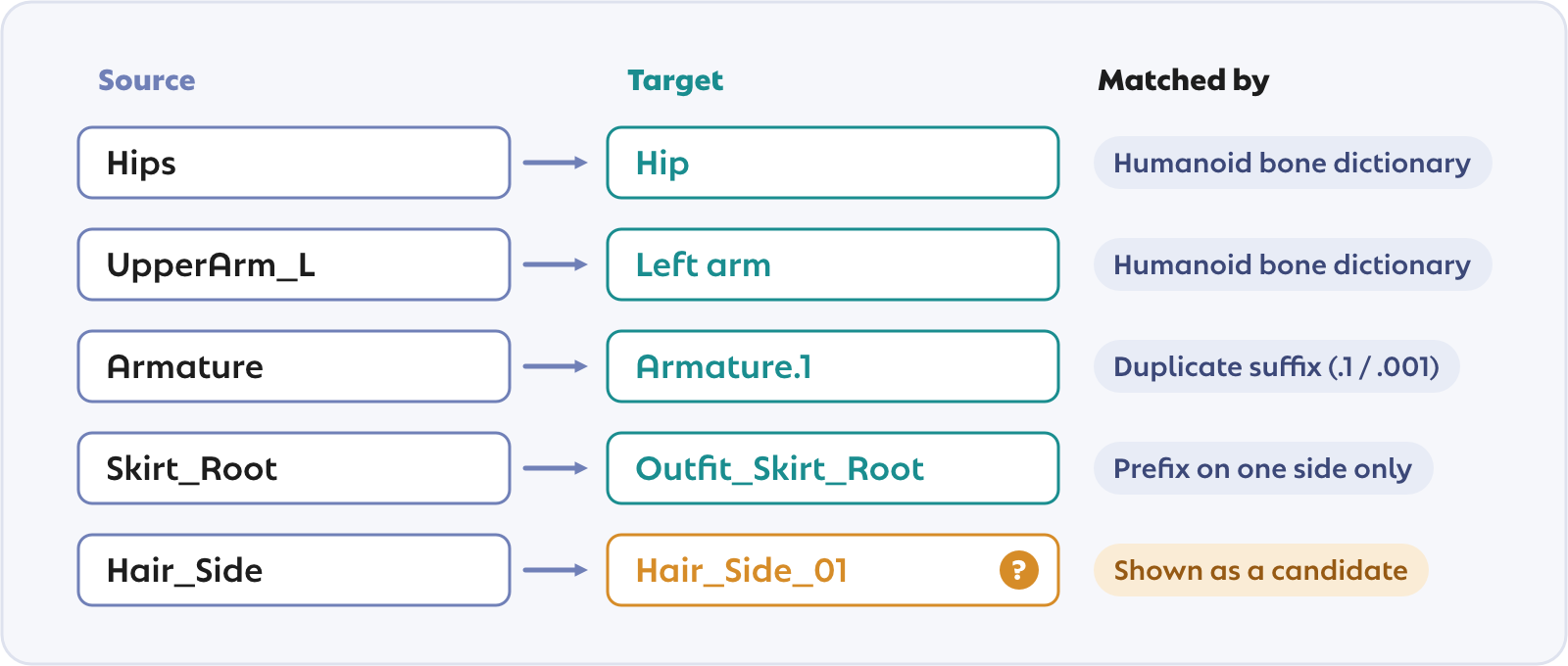
- Ambiguous matches: matches by similar names are never applied automatically; they are offered as suggestions
- Bones and other objects: bones (the transforms used by SkinnedMeshRenderers) and other objects are told apart and matched separately
- Missing bones: bones missing in the target are not created. A component on such a bone is blocked, so map it by hand in the Mapping section
- Manual choice: each row offers a dropdown of candidates and an ObjectField for any object. "None" treats the object as having no counterpart
- Kept choices: mappings picked by hand survive a rescan (
↻) and scene changes
References to the outside
When a component of the outfit refers to a bone or collider of the avatar, and the target sits below another avatar, the reference is redirected to the corresponding object of the target avatar automatically. Without a counterpart, the original reference is kept.
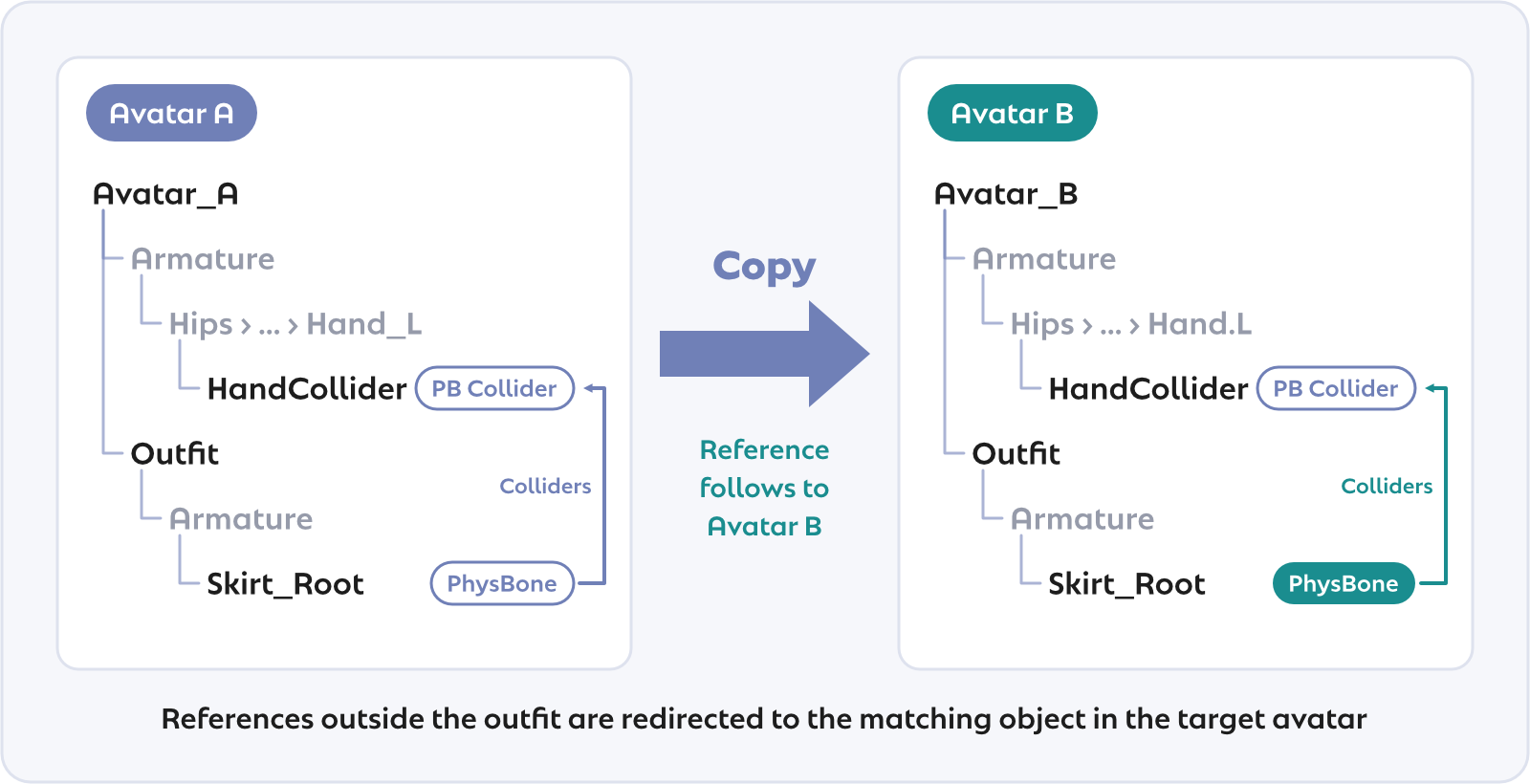
The toggle on the "References to the outside" group switches all of them at once, and each row offers "Keep as is".
Work with the outfits inside their avatars
When copying the components of an outfit, place both the source outfit and the target outfit inside their avatars first. References of components that tend to point at avatar objects, such as MA Mesh Settings, MA Mesh Cutter, or MA Shape Changer, are then redirected along with everything else.
Copy to the other side (mirror)
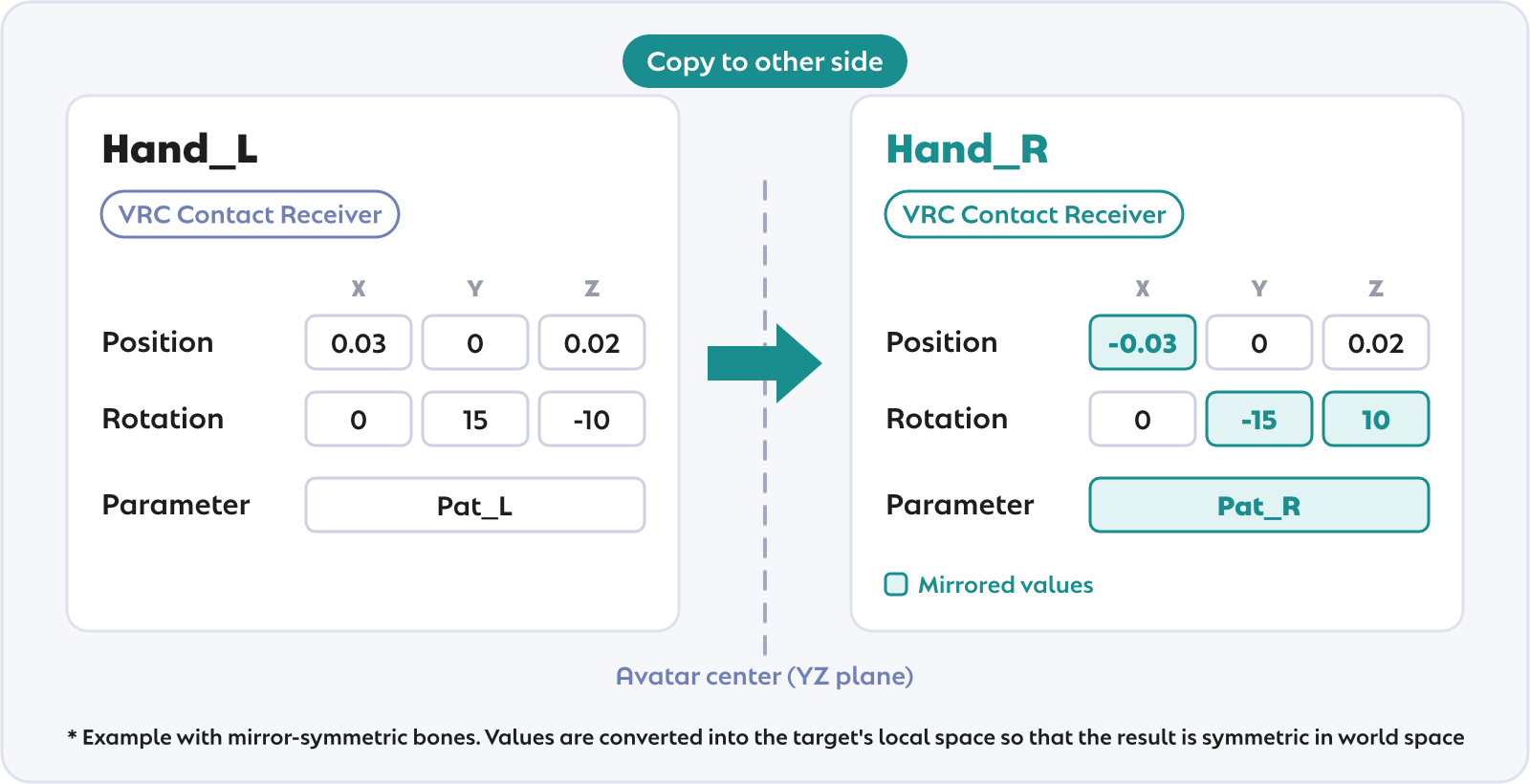
The components of one side of the source (the left half, ...) can be copied to the other side of the same hierarchy. Turn on Copy to the other side between the source and the target: the target field turns into a choice of direction (L → R / R → L), and only the components of the chosen side are listed. When the source itself sits on one side (Hand_L, ...), that side is picked for you. Switching it on or off or changing the direction keeps the checks of the components that stay listed. Picking a target, or opening the window with Copy with Component Copier on a component of an object on the middle line, turns Copy to the other side off.
There is a lot of detail below, but in short: positions, rotations, names and so on are flipped to the other side for you. The few values that cannot be flipped automatically, such as those that depend on the bone axes, are listed in the pre-check, so check them after copying.
Sides: an object belongs to the side of the outermost side marker in the names of the object and its parents (
Hand_L/Ribbon_Ris on the left). A name without a marker also counts when it is a humanoid bone name in the armature, judged through the bone dictionary. Components on objects on the middle line such asHipsorHeadhave no other side and are not listed (PhysBones gathered on one object in the middle cannot be copied this way)Mapping: objects are paired by the side marker of their name and by the side of their humanoid bone. Objects on the middle line such as
HipsorSpineare their own counterpart, so references to them stay as they are. An object without a marker pairs with the same-name object below the counterpart of its parent (Hand_L/Collider→Hand_R/Collider)Mirrored positions and rotations: the following values are mirrored across the middle of the avatar (the YZ plane of the avatar root) and then expressed in the local space of the counterpart. Even on a rig whose left and right bones point in different directions, the result sits at the mirror image in world space
- The position and rotation of PhysBone Colliders, Contacts, and MA Global Colliders
- The Endpoint Position of a PhysBone
- The rest values of constraints, the per-source offsets of Parent constraints, the axes and World Up Vector of Aim constraints, and the Roll of LookAt constraints (its sign flips)
- The Bounds of MA Mesh Settings (when the bounds are Set or Set or Inherit and a Root Bone is set)
- The End Offset, Gravity, and Force of a DynamicBone, and the Center of a DynamicBone Collider
- The Center of Unity's Sphere / Capsule / Box Colliders
The positions and directions of components not listed above (Unity's joints, ...) are copied as they are, without mirroring
Names with a side: the names and paths in the following settings are replaced with those of the other side
- Contact tags (the standard ones such as
HandL/FingerIndexR, and custom ones with a side marker such asTail_L) - The Parameter of PhysBones and Contact Receivers (e.g.
Ear_L→Ear_R) - The Collider to Remap of MA Global Colliders (e.g.
HandLeft→HandRight) - The bone an MA Bone Proxy follows (its humanoid bone and the path below it)
- Contact tags (the standard ones such as
Creating missing objects: an object without a counterpart is created under the flipped name (
Item_L→Item_R) at the mirrored pose (only while Create missing objects is on; bones are never created)Values to check: values that depend on the axes of the bone have no single correct mirror image across rigs. They are copied as is and listed in the pre-check, so check them on the other side after copying:
- The Limit Rotation of a PhysBone (when its Limit Type is not None)
- The offsets of Position / Rotation / Aim / LookAt constraints (when not zero)
- The frozen axes of constraints
- The Freeze Axis of a DynamicBone (when not None), the Direction of DynamicBone Colliders and Capsule Colliders, and the Size of Box Colliders
These side markers are recognized. A trailing number such as .001 or (1) is kept as it is, and only the marker is flipped.
| Pattern | Examples |
|---|---|
A separator (. _ - space) and L / R at the end | Hand_L, Hand.R, hand-l |
L / R and a separator at the start | L_Hand, r.hand |
Left / Right at the start or the end | LeftArm, leftArm, ArmLeft, left_arm, LEFT_ARM |
左 / 右 at the start or the end | 左手, リボン右 |
| A marker between separators | Skirt_L_01, Skirt_Left_01, 髪_左_01 |
Names without a separator such as RibbonL or Leftribbon, and names with two or more markers between separators, are left alone. Humanoid bone names in the armature such as HandL, Leftarm, or UpperLeftArm still get their side from the bone dictionary.
Mirroring follows the avatar
Mapping and mirroring work within the avatar the source sits on. A collider of the outfit that refers to the avatar's Hand_L refers to Hand_R after copying.
When the source is not inside an avatar, the outermost object with an Animator among the source and its parents is used instead (or the topmost parent when there is none).
A copy to the other side stays inside the avatar, so references to the outside of it are kept as they are.
Meshes are not flipped
Objects created on the other side, prefabs included, get the mirrored position and rotation, but a mesh keeps its shape: an asymmetric mesh ends up rotated, not mirrored.
Copy a single object to the other side
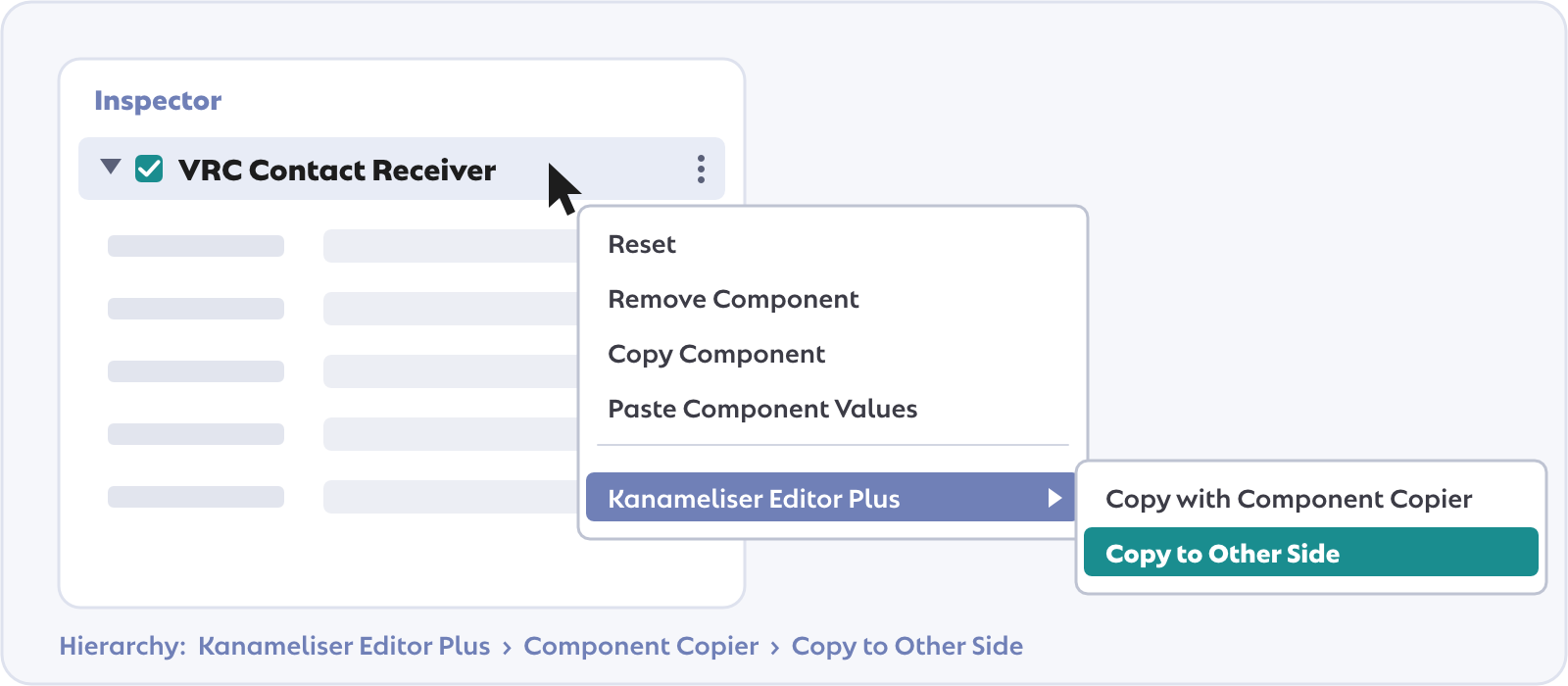
To bring just one object over to the other side, for example after adjusting a collider object while the outfit is on, pick Copy to Other Side from the right-click menu of a component header in the Inspector (the Transform's included) or of the object in the Hierarchy. A dedicated small window opens, from which the object's position and rotation, and the components attached to it, can be copied to the matching object on the other side.
- Choosing the object on the other side:
- The matching object is looked up automatically, and where it is shows below the field. If it is not the right one, pick the object on the other side of the avatar in the field by hand.
- If it is only a suggestion, press Confirm when it is right, or Create new when the suggestion is another object (the avatar's own object of the same name, ...). (Bones are never created, so a bone has no Create new.)
- When a parent without a settled counterpart keeps the object from being created, buttons to confirm the parent's suggestion or to create the parent anew (unless the parent is a bone) are shown.
- Auto goes back to the automatic result at any time.
- Creating it on the other side: when there is no matching object on the other side, one is created below the other side's parent (e.g.
Hand_RforHand_L), with the flipped name at the mirrored position. - Choosing what to copy:
- The Transform (position and rotation) and the components can be picked for copying. The Transform's position and rotation are mirrored, and its scale is adjusted so that the size matches the source.
- What starts out checked depends on where the window was opened from:
- From a component header: just that component.
- From the Transform's header: just the Transform.
- From the Hierarchy: everything except the components that are not copied by default (renderers, ...).
- The Transform of a bone: the pose of a bone (one a mesh is skinned to, or a humanoid bone) shapes the mesh, and the two sides of a rig need not be perfect mirror images, so its Transform starts out unchecked unless the window was opened from the Transform's header.
- The active state, tag, and layer of the object follow the source only when the object is newly created on the other side.
- Components and references:
- Components that already exist on the other side are overwritten.
- References without a counterpart on the other side are set to
Noneand listed in the window. When the referenced object (or its parent) only has an unconfirmed suggestion, a button to confirm it right there is shown.
- Child objects:
- Child objects are not copied as a rule. An empty object that a copied component refers to, however, is created along with it when the other side lacks it, and the window lists it (a Prefab that is added is instantiated as a whole).
- Apply:
- Apply runs the copy and closes the window (Undo is available). When some components could not be added, the window stays open and shows how many.
Unlike Copy to the other side in the main window, this also moves an object that already exists on the other side to the mirrored position and rotation.
Settings
| Setting | Options | Default |
|---|---|---|
| Existing components | Overwrite / Add (duplicate) / Skip / Replace (delete, then copy) | Overwrite |
| Create missing objects | On / Off | On |
| Unresolved references | Copy with None / Skip the component | Copy with None |
- Overwrite: updates the values without recreating the component, so references held by other components stay intact
- Replace: removes the existing components of the same type, then copies. One that another component requires and therefore cannot be removed (a Rigidbody that a HingeJoint requires, ...) is overwritten in place instead, and the pre-check says so
- Unresolved references: what happens when a reference has no counterpart in the target. Skip the component avoids half-configured components, such as a constraint without its source or a PhysBone without its colliders, and holds them back until the mapping is complete
Nested prefabs
When a prefab inside the source (a prefab bundling PhysBone settings, a hat directly below Head, ...) does not exist in the target, the same prefab is instantiated in the target instead of rebuilding its objects one by one.
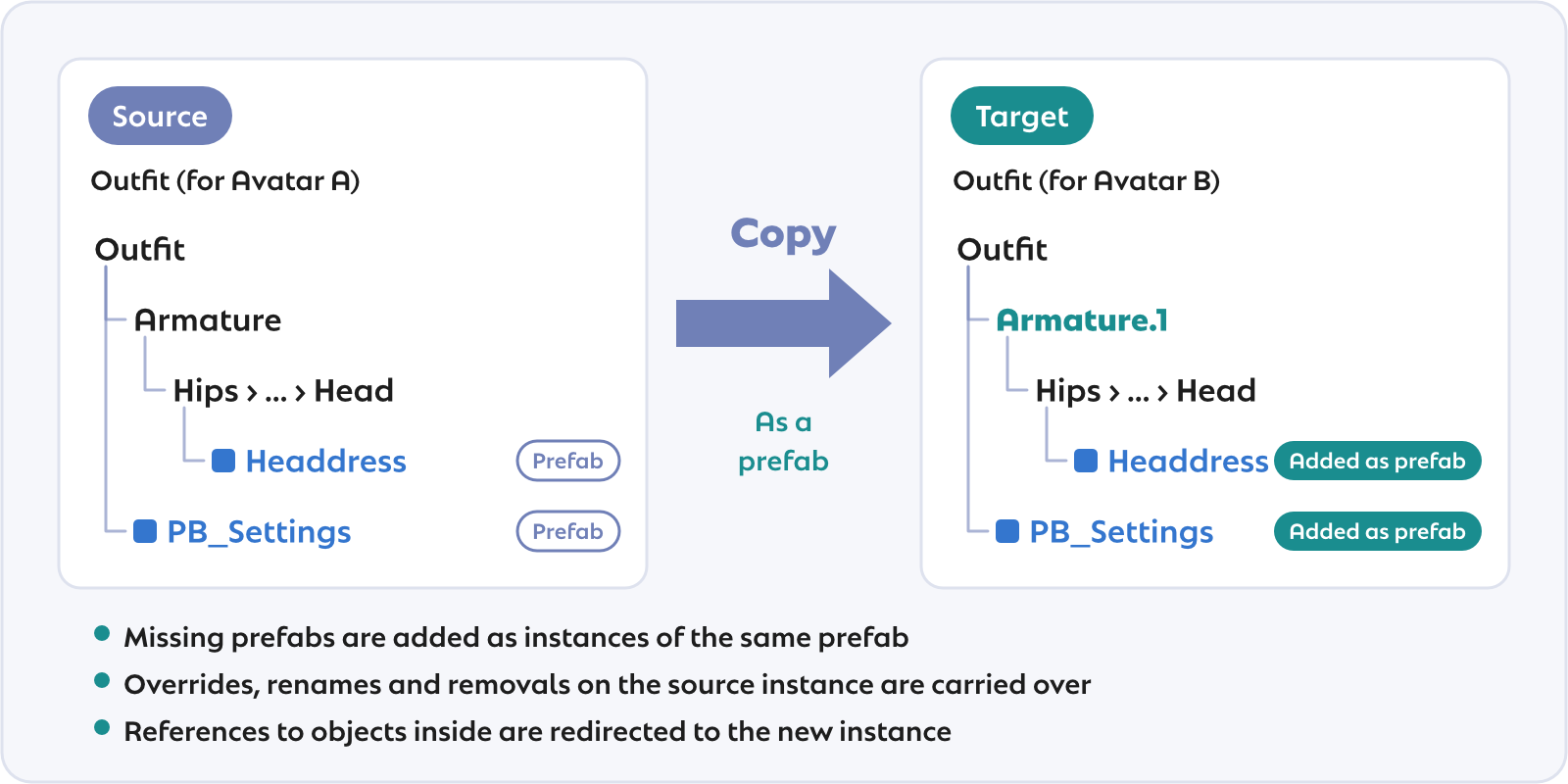
Every component inside it is copied, selected or not, and the values changed on the source instance carry over, as do objects and components you renamed or removed on the source instance. Components you uncheck are removed automatically once the prefab is instantiated, and so are components held back by Skip the component.
When you map an object inside such a prefab by hand, the prefab counts as present in the target, in part at least, and is not added as a whole: that object goes to the counterpart you picked, and the objects without a counterpart are created one by one. To use existing objects for the other objects of the prefab too, map them in the Mapping section as well.
Pre-check and diff check
Pre-check
Before applying, the following is listed:
- How many components are added, overwritten, replaced, or skipped, and how many objects are created
- Blocked components and the reason
- Unresolved references that will be cleared to None (or, depending on the setting, skipped) and the cause
- References to the outside that are kept as they are
- A warning when replacing (deleting) a component would break a reference from a component that is not part of the copy
- For a copy to the other side: how many values are adapted to the other side, and the axis-dependent values that are copied as is (and need checking)
Diff check
Diff check only compares the expected result of the copy with the current state without changing the scene. The same report is shown after applying, so the result can be checked by status:
- Statuses: identical / value differs / reference differs / refers outside the avatar / unresolved reference / missing in the target / only in the target
Refers outside the avatar marks a reference to an object outside of the target's avatar (or, when the target is not on an avatar, outside of its topmost parent), such as a reference to the source's avatar that was kept because it has no counterpart. Pick a replacement in the Mapping section and apply again.
Notes
- Transform values: positions and rotations are copied as local values (a copy to the other side mirrors them). Between avatars whose bones point in very different directions, some adjustment by hand may be needed after copying
- Modular Avatar references: the targets of Merge Armature, Object Toggle, Shape Changer, and the like are rewritten as a whole, the avatar-relative path along with the object reference
- PipelineManager: including PipelineManager copies the Blueprint ID too. Leave it unchecked unless that is what you want
Access
The tool opens from any of these:
- Main menu:
Tools > Kanameliser Editor Plus > Component Copier - Right-click in the Hierarchy →
Kanameliser Editor Plus > Component Copier > Use as Source / Use as Target - Project view (right-click a Prefab) →
Kanameliser Editor Plus > Component Copier > Use as Source - Inspector (right-click a component header) →
Kanameliser Editor Plus > Copy with Component Copier(opens with just the chosen component checked)
The window that copies a single object to the other side (Copy a single object to the other side) opens from these:
- Inspector (right-click a component header, the Transform's included) →
Kanameliser Editor Plus > Copy to Other Side - Right-click in the Hierarchy →
Kanameliser Editor Plus > Component Copier > Copy to Other Side